
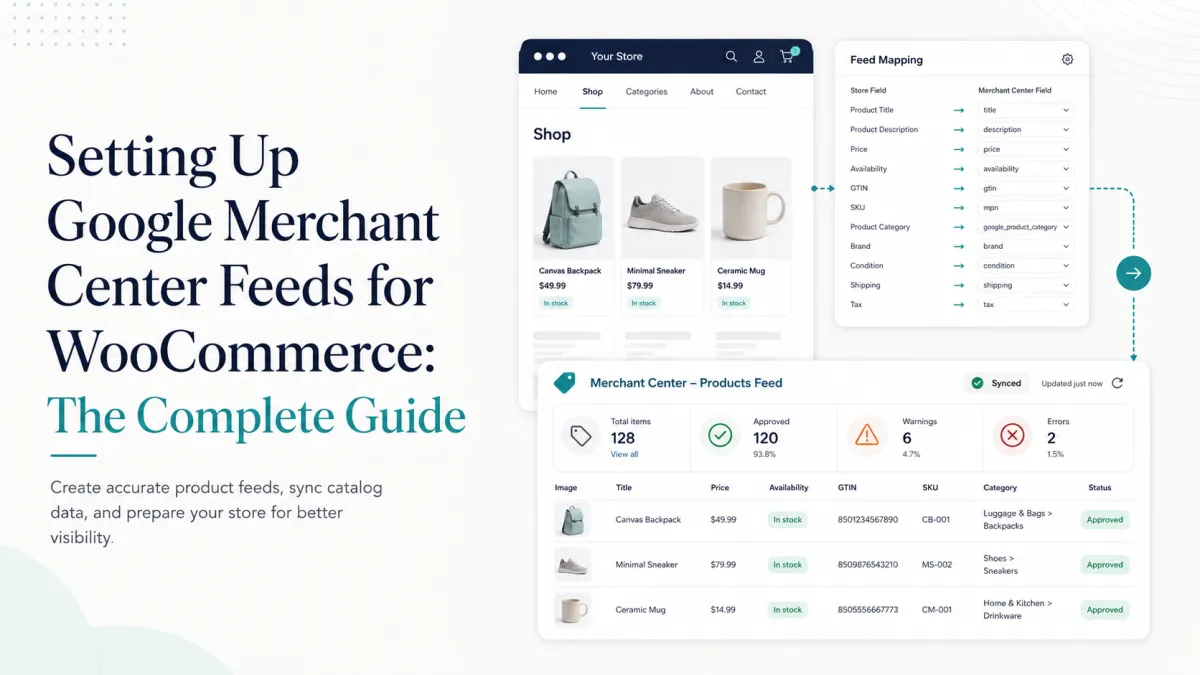
What must a WooCommerce Merchant Center feed do?
A useful feed translates the current WooCommerce catalog into Google’s product-data format without changing the commercial facts. It must keep identifiers, variations, prices, availability, landing pages, shipping, and return information synchronized. Submission is not approval: Merchant Center validates the data and can reject products that are incomplete, inconsistent, inaccessible, or unsupported.
1. Prepare the store before connecting a feed
Use HTTPS on every product and checkout URL.
Publish clear contact, shipping, return, and refund information.
Make prices and availability visible without requiring an account.
Remove placeholder products, broken images, and staging URLs.
Confirm the business and target-country settings you will use in Merchant Center.
2. Clean the product source data
The feed can only be as reliable as WooCommerce. For each product, review title, description, primary image, landing page, price, sale dates, stock status, brand, condition, GTIN, MPN, category, and shipping attributes.
Use manufacturer identifiers exactly as assigned. Do not invent a GTIN for handmade or custom goods. Keep parent and variation data separate: each submitted variant needs a stable ID, correct landing URL, its own availability and price, and consistent grouping.
3. Choose the feed method
WooCommerce stores commonly use one of three approaches:
Official integration: Google for WooCommerce connects the store and synchronizes products.
Scheduled file: Merchant Center fetches XML or another supported file from a stable URL.
API-based sync: a service or custom integration sends product changes programmatically.
Choose based on catalog size, variation complexity, update frequency, observability, and who will support failures. A scheduled feed is easy to inspect; an API can update faster but needs strong logging and retry behavior.
4. Map fields deliberately
| Merchant field | WooCommerce source | QA question |
|---|---|---|
| id | Stable product/variation ID or SKU strategy | Will it remain stable after edits? |
| title | Product or variation-aware title | Does it identify the exact item? |
| price | Current WooCommerce price | Does the landing page match? |
| availability | Stock status and backorders | Is it current when Google fetches? |
| gtin/mpn/brand | Real manufacturer data | Is anything invented or reused? |
| item_group_id | Parent variable product | Are variants grouped consistently? |
5. Configure shipping and returns
Merchant Center and the landing page should tell the same story. Configure target countries, service levels, costs, free-shipping thresholds, handling time, transit estimates, return window, return method, and return fees. If product-level rules differ, verify that overrides do not conflict with account-level settings.
6. Submit a small sample first
Start with a representative set: a simple product, a variable product, a sale item, an out-of-stock item, and a product without a manufacturer GTIN where legitimate. Check processing results before sending the entire catalog.
7. Work from Diagnostics, not guesswork
For each issue, compare four places: WooCommerce source, generated feed, public landing page, and Merchant Center interpretation. Fix the source or mapping, regenerate, and wait for reprocessing. Avoid manual patches in Merchant Center that will be overwritten by the next sync.
8. Monitor after launch
Alert on failed generation or stale files.
Track submitted, approved, limited, and disapproved products.
Regenerate after relevant product and policy changes.
Audit price and availability consistency regularly.
Keep a change log for mappings and account settings.
Take one practical step
Run the free Merchant Readiness audit in Emargy GEO Lite and correct missing identifiers before connecting the full catalog. GEO Pro additionally generates inspectable static XML and TSV merchant feeds, but the free audit is enough to improve the source data first.